Configuring a SaaS offer's Technical Configuration
One section of a SaaS offer in Partner Center is the Technical Configuration. This is the fundamental integration point for AMPup that enables AMPup to talk to the marketplace SaaS APIs.
This document walks through configuring the Technical Configuration for a SaaS offer.
Finding the Technical Configuration section in Partner Center
- Log in to your Partner Center account.
- Browse to your SaaS offer.
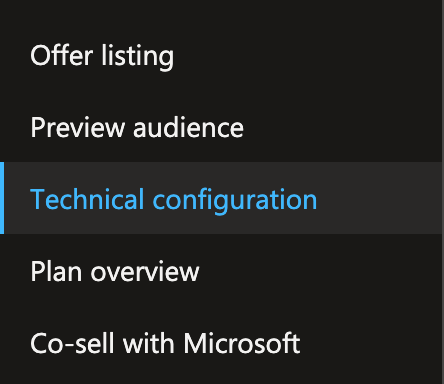
- In the left-hand sidebar, click the "Technical configuration" node.
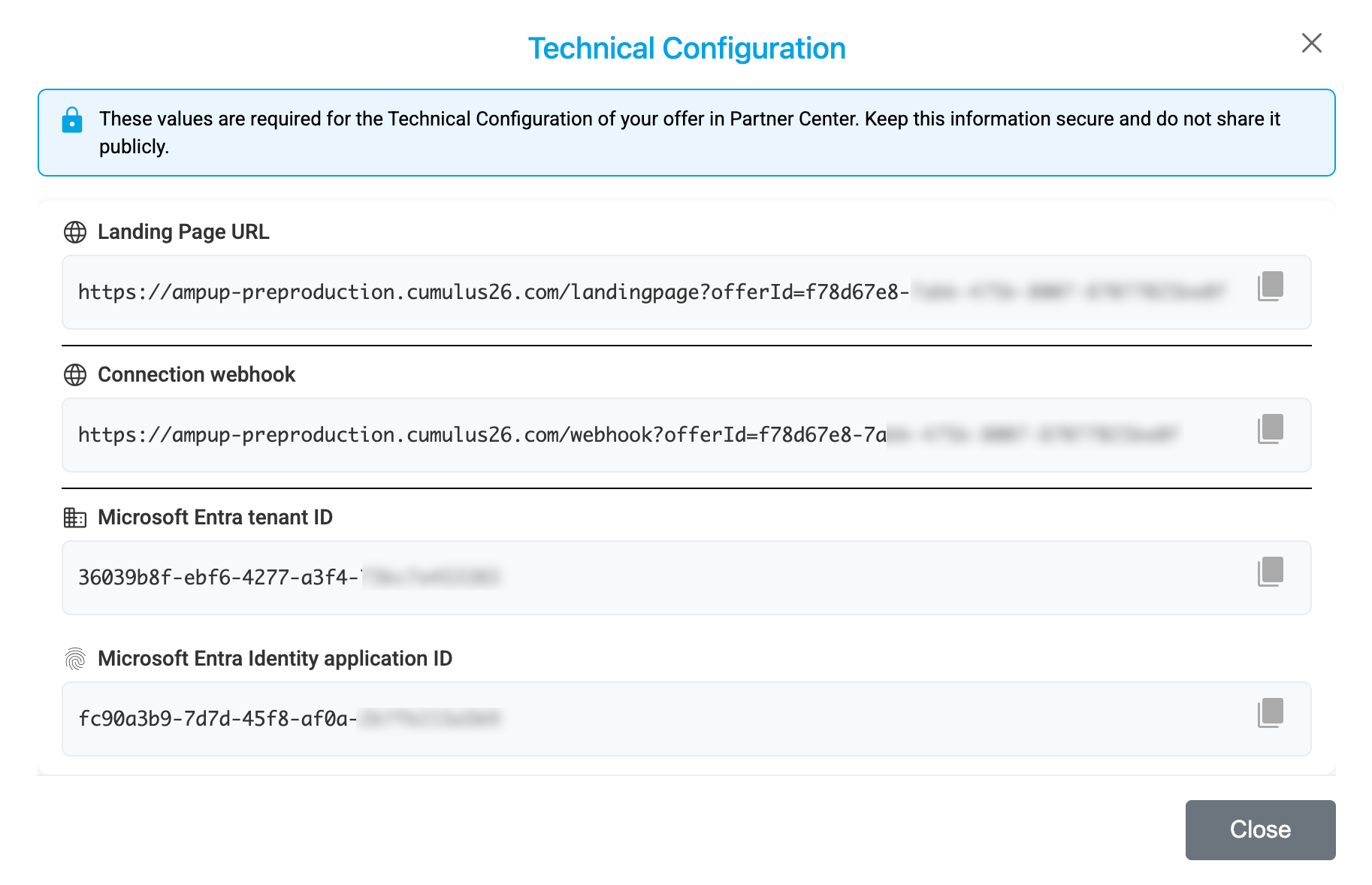
The Technical Configuration section has the following four fields that need to be configured:
- Landing page URL
- Connection webhook
- Microsoft Entra tenant ID
- Microsoft Entra Identity application ID
These values are available in AMPup.
Finding Technical Configuration Values in AMPup
- Log in to your AMPup account.
- Expand the Publisher node for the Publisher that holds the SaaS offer you wish to configure.
- Click the Public Offers node.
- If you have not configured Partner Center integration, expand the Technical Configuration item. If Partner Center integration is configured, expand the appropriate offer.
Select the View Tech Config button and the Technical Configuration values will be displayed in a dialog.
If the Tenant ID and Identity Application ID are not yet present, select the Generate missing IDs button, wait a moment and then select the Refresh button. This will generate the values.
Configuring Technical Configuration Values in Partner Center
This step is as simple as copying the values from AMPup to Partner Center.
After inputting the values into Partner Center, you must publish your offer.