
Partner Center integration configuration
Reports, Private Offers, and other features depend on Partner Center configuration values. These instructions take you through the required steps in Partner Center and AMPup to configure Partner Center integration.
Note: You must be a Global Administrator in Partner Center to complete these steps.
You will collect the following values from Partner Center and use them in AMPup to configure Partner Center integration:
| Value | Description |
|---|---|
| Azure Entra Tenant ID | This is the ID of the Azure Entra tenant that your AMPup account is associated with. |
| Microsoft Entra ID Application ID | You will create an application in Partner Center and use the Application ID for the report configuration. You may choose to use an existing Microsoft Entra ID Application if you already have one. |
| Microsoft Entra ID Application Secret | You will create a secret for the application in Partner Center and use the Secret for the report configuration. |
| Secret Expiration Date | The date when the secret will expire. |
Step 1: Configure a Microsoft Entra ID application in Partner Center
- Login to Partner Center with your Publisher account.
- Navigate to Account Settings from the top navigation.
- Click on the User management link in the left navigation.
- Select the Microsoft Entra applications tab.
- Click on the Add Microsoft Entra application button.
- Select the Microsoft Entra application unless you wish to use an existing application defined in Azure. If you wish to use an existing application, select Add Microsoft Entra application. Click Continue to proceed.
Note: The following instructions assume you selected Create Add Microsoft Entra application.
- Enter a Name and Reply URL for the application. If you aren't sure what to enter, use the the URL of your company's website.
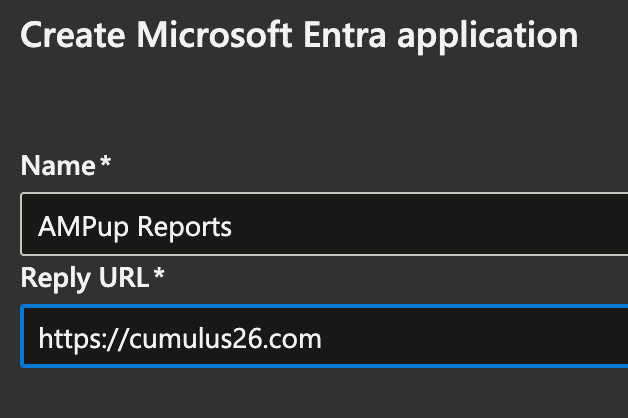
- Click Next to proceed.
- Select all available roles as shown in the below image.
These roles are needed to enable reporting, Private Offers, Gand other features in AMPup.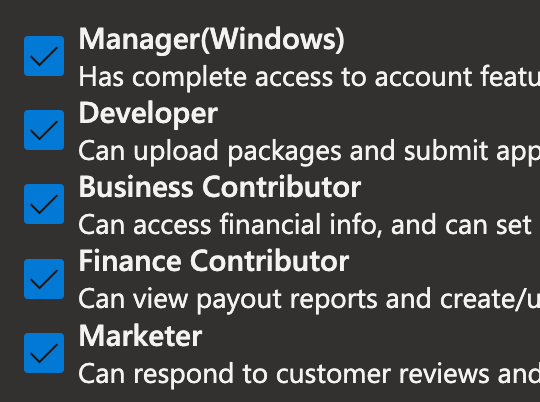
- Click Create. The new application will be created and you will be redirected to the application list.
- Click the Microsoft Entra ID application link in the list and the Keys page will be displayed.
- Click the Add new key link. You must be a Global Administrator to add a new key. A new Entra ID application secret is created.
- Copy the Client ID and Key values. Save these values for later use.
- Close the dialog. You are taken back to the list of applications page.
- Click the application link in the list. The Keys page is displayed.
- Copy the Expires date for the key you just created. Save this value for future reference.
- Select the Cancel button and the application details are displayed.
- Copy the Tenant ID value and save it for later use.
Step 2: Configure Partner Center integration in AMPup
- Login to AMPup.
- Navigate to the Publisher node of the Publisher you are configuring.
- Scroll down to the Partner Center Integration section.
- Click the Edit Credentials button and enter the values you saved from Partner Center.
- Click the Save button.
- The Success dialog appears.
- After report data is fetched from Partner Center, you can view the reports in AMPup. This may take several minutes to complete.